Sign into Pinepods
Pinepods provides a comprehensive sign-in experience that includes user authentication, customizable landing pages, and seamless integration with your preferred podcast listening workflow. The system supports multiple authentication methods and personalized start page preferences.
Overview​
The Pinepods sign-in system consists of several key components:
- User Authentication: Secure login with username and password
- Multi-Factor Authentication: Optional TOTP-based security enhancement
- Password Reset: Self-service password recovery via email as long as you setup email options
- Start Page Configuration: Customizable landing page after login
- Session Management: Persistent login sessions across devices
Standard Login Process​
Basic Authentication​
Step 1: Enter Credentials​
- Username: Type your assigned or chosen username
- Password: Enter your account password
- Verify Input: Ensure credentials are entered correctly
- Submit: Click the "Sign In" button to authenticate
Step 2: System Verification​
- Credential Check: Pinepods verifies your username and password
- Account Status: System confirms your account is active
- Authentication Success: Successful login proceeds to your start page
- Error Handling: Invalid credentials display appropriate error messages
Step 3: Post-Login Actions​
- Session Creation: Pinepods establishes your user session
- Preferences Loading: System loads your personal settings and preferences
- Start Page Navigation: Automatic redirect to your configured start page
Multi-Factor Authentication (MFA)​
MFA-Enhanced Login Process​
If you've enabled MFA on your account, the login process includes an additional security step:
Standard Login First​
- Username and Password: Complete the normal credential entry
- Initial Verification: Pinepods validates your basic credentials
- MFA Prompt: System requests your authenticator code
MFA Code Entry​
- Authenticator App: Open your TOTP authenticator app (Google Authenticator, Authy, etc.)
- Locate Code: Find the 6-digit code for your Pinepods account
- Enter Code: Input the current code in the MFA prompt
- Time Sensitivity: Codes expire every 30 seconds, so enter promptly
- Complete Login: Successful MFA verification completes the login process
MFA Troubleshooting​
- Expired Codes: Wait for a new code if the current one has expired
- Time Sync: Ensure your device's clock is accurate for proper code generation
- Code Accuracy: Double-check that you're entering the code correctly
- App Issues: Verify you're using the code from the correct account in your authenticator
Password Recovery​
Forgot Password Process​
If you've forgotten your password, Pinepods provides a self-service recovery option as long as you set it up in the admin area of settings:
Initiating Password Reset​
- Forgot Password Link: Click "Forgot Password?" on the login page
- Account Information: Enter your username and associated email address
- Reset Request: Submit the password reset request
- Email Verification: Check your email for the reset code
Completing Password Reset​
- Email Code: Locate the password reset code in your email
- Return to Interface: The reset modal will appear after submitting the request
- New Password: Enter your desired new password
- Reset Code: Input the code from your email
- Submit Changes: Complete the password reset process
- Login: Use your new password to log into Pinepods
Password Reset Requirements​
- Valid Email: Your account must have a valid email address configured
- Email Configuration: Administrators must have configured email settings on the server
- Code Expiration: Reset codes expire after a certain time for security
- Single Use: Each reset code can only be used once
User Self-Registration​
Self-Service Account Creation​
If enabled by administrators, new users can create their own accounts:
Account Creation Process​
- Create New User: Click the "Create New User" button (if visible)
- User Information: Provide required account details:
- Username: Choose a unique username for your account
- Password: Create a secure password
- Email Address: Provide a valid email for account recovery
- Full Name: Enter your display name
- Account Validation: System verifies the provided information
- Account Creation: Successful validation creates your new account
Self-Registration Requirements​
- Administrator Permission: Feature must be enabled by server administrators
- Unique Username: Chosen username must not already exist
- Valid Email: Email address must be properly formatted and accessible
Start Page Configuration​
Customizing Your Landing Page​
Pinepods allows you to configure which page you see immediately after logging in in the settings of your account:
Available Start Page Options​
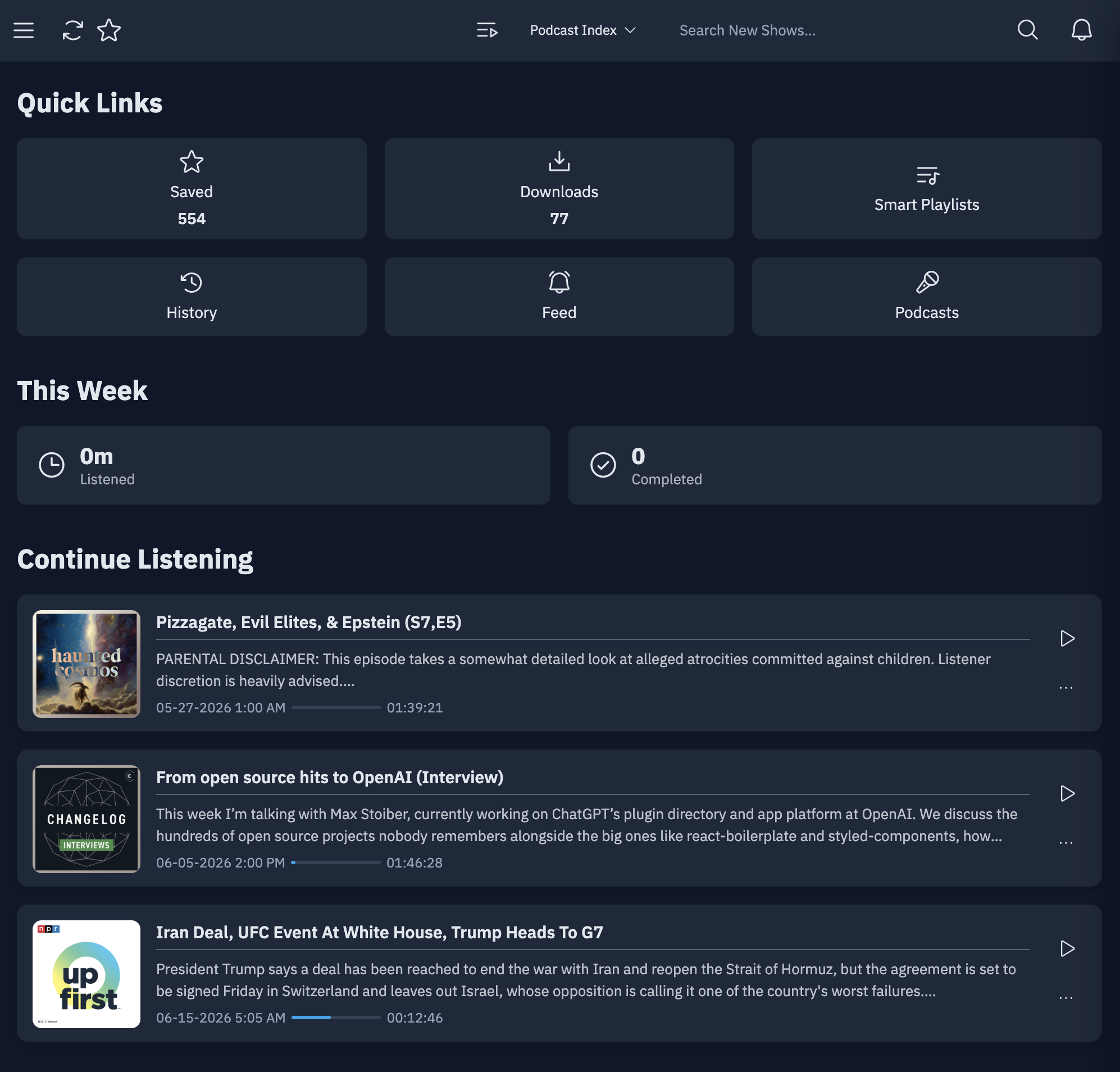
- Home: Dashboard view with recent activity and quick access features
- Feed: Your personalized episode feed with latest content
- Podcasts: Library view of all your subscribed podcasts
- Queue: Your listening queue with planned episodes
- Saved: Collection of bookmarked episodes
- Downloads: Episodes downloaded to the server
Setting Your Start Page​
- Navigate to Settings: Access your user settings after logging in
- Start Page Options: Find the start page configuration section
- Select Preference: Choose your preferred landing page
- Save Settings: Apply your start page preference
- Next Login: Your choice takes effect on subsequent logins
Session Management​
Login Session Features​
- Persistent Sessions: Stay logged in across browser sessions
- Multiple Devices: Use the same account on different devices simultaneously
- Cross-Platform: Sessions work across web, mobile, and desktop clients
Troubleshooting Login Issues​
Email Issues (Password Reset)​
- Email Configuration: Verify your account has the correct email address
- Spam Folder: Check spam/junk folders for password reset emails
- Email Delivery: Allow time for email delivery
- Administrator Help: Contact administrators if email issues persist
MFA Problems​
- Clock Synchronization: Ensure your device's time is accurate
- Code Generation: Verify your authenticator app is generating codes
- Setup Verification: Confirm MFA was set up correctly
- Recovery Options: Contact administrators if locked out due to MFA issues
Browser and Technical Issues​
Browser Compatibility​
- Supported Browsers: Use current versions of major browsers (Chrome, Firefox, Safari, Edge)
- JavaScript: Ensure JavaScript is enabled in your browser
- Cookies: Enable cookies for the Pinepods domain
- Cache Issues: Clear browser cache if experiencing persistent problems